How to find an old Claude conversation
Updated 27 October 2026
Claude helped you with something weeks ago: a contract clause, a bug, a plan. Now you need it again and the chat list is a wall of similar titles. Here's every way to get it back, and which one fits what you remember.
The short answer
- You remember the title or a word in it: search the chat list in Claude's sidebar.
- You remember the topic, not the words (paid plans): ask Claude to find it with chat search.
- You need the exact message, or it might have been ChatGPT or Gemini: use full-text search such as TidyTalk.
1. Search Claude's chat list
- On claude.ai or in the desktop app, open Chats in the left sidebar.
- Click the search bar at the top and type a keyword, a phrase or part of the chat's title.
- Pick the chat from the filtered list.
This is quickest when you remember roughly what the chat was called. Claude titles chats from your first message, so the title often reflects how the chat started, not what it ended up being about. Results are chats, not messages, so in a long chat you'll still scroll to the part you need.
2. Ask Claude to search your past chats
On Pro, Max, Team and Enterprise plans, Claude can search your previous conversations itself. Just ask: "Find the chat where we worked out the refund clause for the Acme contract." Claude runs a search (you'll see it as a tool step in the chat), lists what it found with short summaries, and can pick up from there.
- Turn it on or off: Settings → Your Claude → Search and reference chats. It's on by default once it reaches your account.
- Scope: outside a project, Claude searches your chats that aren't in projects; inside a project, it searches only that project.
- Not on the free plan, and incognito chats are never searched.
It's the best option when you remember the idea but not the words. Like any AI summary, check the original chat before relying on exact figures or code.
3. Look in the right project
If you use Claude projects, a chat about a project's work is probably inside it. Open the project from the sidebar to see its chats, a far shorter list than all your chats. Going forward, starting work chats inside a project makes them much easier to find, and gives Claude the project's files and instructions every time.
4. Search your data export
- Open Settings → Privacy → Export data on claude.ai or the desktop app.
- Download the zip from the email within 24 hours.
- Open
conversations.jsonin a browser such as Firefox, which displays JSON readably, and use find (Ctrl+F).
The export includes every conversation you haven't deleted, so it's a reliable last resort. It's raw data, though, and it doesn't link back to the live chat. Our guide to exporting Claude chats includes a short script that turns it into readable Markdown files.
5. Search every message and jump straight to it
TidyTalk is a Chrome extension that reads your Claude, ChatGPT and Gemini chats with your own sign-in and keeps a full-text index on your computer.
- Install TidyTalk (free) and open claude.ai while signed in. It reads your chats in the background.
- Press Ctrl+Shift+K (Cmd+Shift+K on a Mac) on claude.ai, or click the TidyTalk icon for the side panel.
- Type any words you remember from your message or Claude's answer. Pick a result and the chat opens scrolled to that message, highlighted.
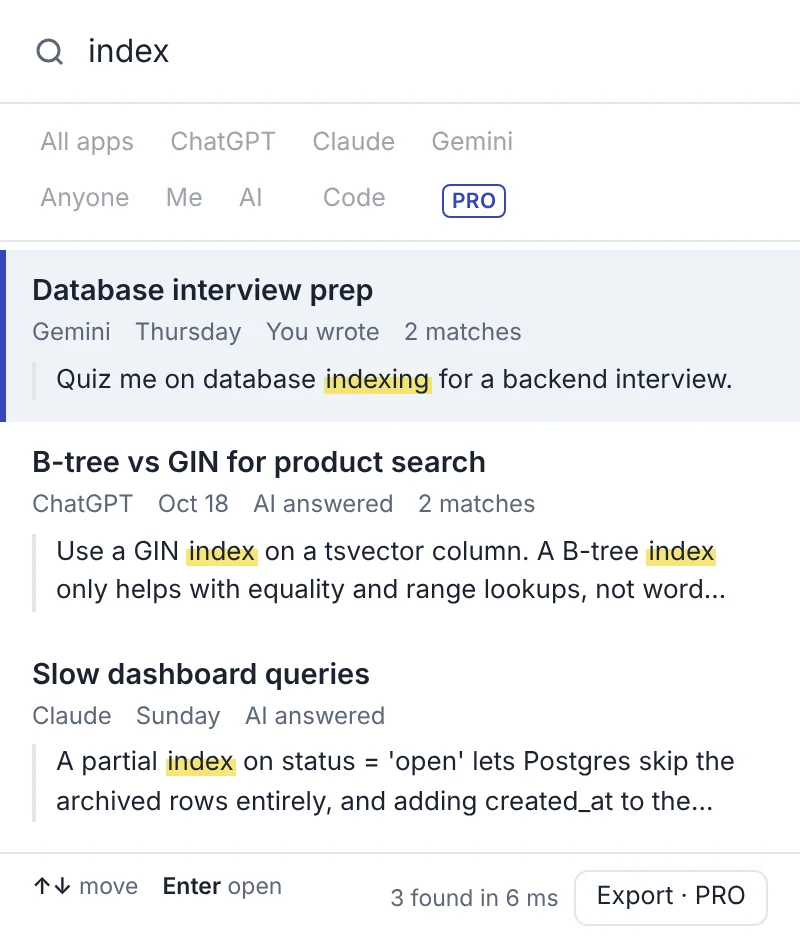
- Searches message text, not just titles, across Claude, ChatGPT and Gemini at once. Free.
- Typo-tolerant, and the last word can be partial.
- Filters (Pro): only Claude, only your messages or only the AI's, only messages with code.
- Search by meaning (Pro): finds "the termination notice period" even if the chat said "ending the agreement with 30 days' warning". The model runs on your computer.
- Old chats in one go: import your Claude data export (side panel → Status → Import a data export) and every past chat becomes searchable. Nothing is uploaded.
Which method for what you remember
| You remember… | Best method |
|---|---|
| Roughly what the chat was called | Claude's chat list search |
| The topic, not the words | Ask Claude (paid plans), or TidyTalk's search by meaning |
| A specific word, name, number or error | TidyTalk full-text search, or the data export |
| Which project it was for | Open the project |
| It might have been ChatGPT or Gemini | TidyTalk (searches all three) |
Make the next search easier
- Rename important chats right after they pay off ("Acme contract: refund clause, agreed").
- Start project work inside the project.
- Save the answer that mattered with a note, so it's one search away. See how to save the best AI answers.
- Don't delete chats you might need. Deleted chats are gone from search and from future exports.
Questions
Can I search the text of my Claude messages, not just titles?
Claude's chat list search finds chats by keyword. To search every message and land on the exact one, use a full-text index such as TidyTalk, or search your data export.
Is Claude's chat search available on the free plan?
No. Asking Claude to search past chats is available on Pro, Max, Team and Enterprise plans. The chat list in the sidebar is searchable on every plan.
Can I recover a deleted Claude chat?
No. Once deleted, a chat is gone from Claude and won't appear in future exports. An older data export or a TidyTalk index made before deletion may still have a copy.
Why doesn't Claude find a chat I know exists?
Check whether it's inside a project (searches from inside a project stay in that project, and vice versa), whether it was an incognito chat (never saved or searched), and try different words from the chat.
Can I search Claude and ChatGPT together?
Not with either app's own tools. Searching ChatGPT, Claude and Gemini at once needs a tool that reads all three, such as TidyTalk.
Sources
- Claude Help Center: How Claude's memory and chat search work
- Claude Help Center: Export your Claude data
- Guideflow: How to search for a chat in Claude.ai (March 2026)
TidyTalk is an independent Chrome extension and isn't affiliated with OpenAI, Anthropic or Google. Add it to Chrome, free.