How to search ChatGPT, Claude and Gemini at once
Updated 27 October 2026
If you use more than one AI, you've had this moment: you know one of them gave you the answer, but not which one. Each app only searches itself, so you end up checking three search boxes. Here's how each one works, a free do-it-yourself way to search everything together, and the one-box option.
The short answer
- ChatGPT, Claude and Gemini each only search their own chats, and none of them can search the others.
- Free and manual: download each app's data export into one folder and search it with your computer's search.
- One box, live, straight to the message: a local index such as TidyTalk.
How each app's own search works
| ChatGPT | Claude | Gemini | |
|---|---|---|---|
| Open search | Sidebar magnifier, or Ctrl+K / Cmd+K | Chats in the sidebar, then the search bar | Menu, then Search |
| Finds | Titles and message text, by keyword | Chats by keyword or title | Chats, as a flat list |
| Ask the AI to recall past chats | Yes, with memory's chat history option on | Yes, on Pro, Max, Team and Enterprise | Yes, personal accounts with Keep Activity and memory on |
| Opens at the matching message | No | No | No |
For detail on each: searching ChatGPT history, finding an old Claude chat and organising Gemini chats.
Why searching them separately hurts
- You search three times and still might not find it, because you're not sure which app it was.
- The results are chats, not messages. Long chats still mean scrolling.
- Each search works differently, so the same words can find the chat in one app and miss it in another.
Free option: put all the exports in one folder
Every app lets you download your data. Put the files side by side and your computer can search them together.
- ChatGPT: Settings → Data controls → Export data. Unzip; keep
chat.htmlandconversations.json. - Claude: Settings → Privacy → Export data (web or desktop). Unzip; keep
conversations.json. - Gemini: Google Takeout → select only My Activity → Gemini Apps → Create export. Unzip; keep the HTML file.
- Put everything in one folder, such as
AI exports/2026-10. - Search the folder: Windows File Explorer's search, Spotlight on a Mac, or open the folder in a code editor like VS Code and use Find in files (Ctrl+Shift+F), which shows every match with surrounding text.
It's free and private. The catches: it's a snapshot, so new chats aren't included until you export again; exports can take hours to days to arrive; and a match tells you which file, not a link back to the live chat.
One box, live, straight to the message
TidyTalk is a Chrome extension that reads your ChatGPT, Claude and Gemini chats with your own sign-in and keeps one search index for all three, on your computer.
- Install TidyTalk (free).
- Open chatgpt.com, claude.ai and gemini.google.com once each while signed in. TidyTalk starts reading each within a few seconds, and keeps up with new chats as you use them.
- Press Ctrl+Shift+K (Cmd+Shift+K on a Mac) on any of the three sites, or open the side panel anywhere, and type what you remember.
- Pick a result. The right app opens at the exact message, highlighted.
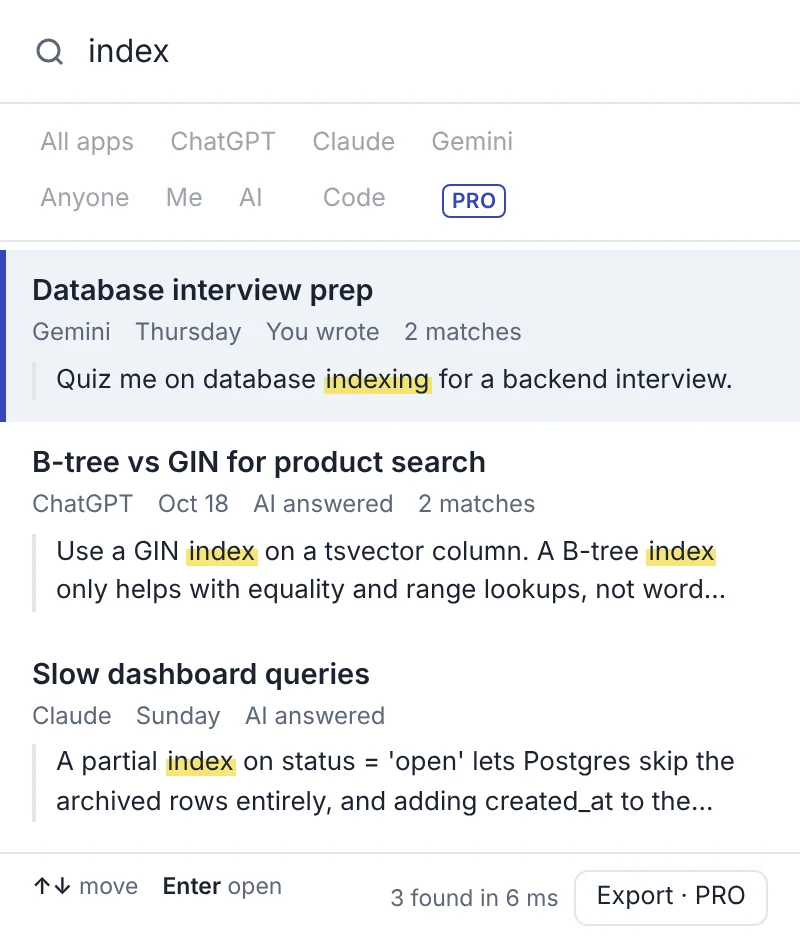
- Every message, every app, free. No limit on how far back it searches, for everything TidyTalk has read.
- Filters (Pro): narrow to one app, to your messages or the AI's, or to code.
- Search by meaning (Pro): finds answers that use different words from your query. The model runs locally.
- Saved answers you've kept from any app show first.
- History in one go: import your ChatGPT and Claude exports (Status → Import a data export) to make older chats searchable immediately.
One honest limit: ChatGPT only allows a few chat reads per hour, so TidyTalk reads your last 30 days of ChatGPT in full and lists older chats by title until you open them or import the export.
Is it safe to let a tool read all my AI chats?
It's the right question to ask. Before installing anything, check:
- Where chats are stored. Locally in your browser is the safest. Be wary of tools that upload your conversations to their servers.
- The Chrome Web Store privacy section, which lists what data the developer says it collects.
- Permissions. A chat organiser needs access to the AI sites, not "all websites".
- The privacy policy, in plain words.
TidyTalk stores chats only in your browser and has no server copy of them; its optional sync covers folders, tags, prompts and saved answers, end-to-end encrypted. It asks for access to ChatGPT, Claude and Gemini, plus its own sign-in page, and nothing else. Details are in the privacy policy.
Questions
Can ChatGPT search my Claude or Gemini chats?
No. Each app can only see its own conversations. Searching across them needs your exports in one place, or a tool that reads all three.
Does Gemini have a chat search?
Yes: open the menu and choose Search. It returns a list of matching chats. You can also ask Gemini about past chats if Keep Activity and memory are on.
Can I search my AI chats offline?
With the exports in a folder, yes. TidyTalk's index is also stored on your computer, so search itself doesn't depend on the AI sites being reachable; opening a chat does.
Does TidyTalk work with Perplexity or Grok?
Not yet. ChatGPT, Claude and Gemini are supported today; you can vote for the next app in the side panel's Status tab.
Sources
- OpenAI Help: How do I search my chat history in ChatGPT?
- Claude Help Center: Memory and chat search
- Gemini Apps Help: Find and manage your recent chats
- University of Michigan: Export Gemini chat history with Google Takeout
TidyTalk is an independent Chrome extension and isn't affiliated with OpenAI, Anthropic or Google. Add it to Chrome, free.