How to build a prompt library for ChatGPT, Claude and Gemini
Updated 27 October 2026
You have a handful of prompts that reliably get great results: the code review, the email rewrite, the "explain it simply". And you retype them, slightly worse, every time. A prompt library fixes that. Here's how to build one, with the tools built into each app and one that works across all three.
The short answer
- Standing preferences (tone, your role): custom instructions, or project instructions.
- A repeat task with its own setup: a GPT in ChatGPT, a Gem in Gemini, a project in Claude.
- Many short prompts with blanks, in any app: a prompt picker such as TidyTalk's
//.
What makes a prompt worth saving
A reusable prompt has fixed instructions and a few variable parts. Writing the variable parts as blanks makes the difference between a note you copy and edit, and a template you fill in seconds:
Rewrite the text below for {{audience}} in a {{tone}} tone.
Keep it under {{length}} words. Keep every fact; cut filler.

{{text}}
Good candidates are prompts you've used three or more times, prompts you refined over several attempts, and prompts with structure you'd forget (a checklist, an output format, constraints).
1. Custom instructions: preferences for every chat
In ChatGPT, open Settings → Personalization and fill in the custom instructions: what you do, and how you like answers ("British English, no bullet points unless asked, show code before explanation"). Claude and Gemini have equivalent settings for preferences and saved info.
These apply to every chat, so keep them to things that are always true. They're not for task prompts; a code-review checklist in your custom instructions will leak into your recipe questions.
2. Projects: instructions for one area of work
ChatGPT and Claude projects both take instructions that apply to every chat inside the project, along with project files. Put the context for one body of work there: "This is the Acme website project. Stack: Next.js and Postgres. Our style guide is attached."
Projects are the right home for context. They're awkward for prompts you use across projects, like "summarise this meeting".
3. GPTs and Gems: a saved assistant per task
- ChatGPT GPTs are custom versions of ChatGPT with their own instructions and files. Create one for a task you do often, such as "LinkedIn post editor", and open it when you need it.
- Gemini Gems do the same in Gemini: saved instructions you can start a chat with.
- Claude has no direct equivalent; a project with instructions plays the same role.
These are great for a few big, well-defined tasks. They're heavy for small ones: you won't make a GPT for "explain this error", and each lives in one app.
4. A plain document of prompts
The low-tech option: a note called "Prompts" with each prompt under a heading and blanks marked in {{double braces}}. Copy, paste, replace the blanks. It works everywhere, costs nothing and is easy to share with a team. The friction is the copying and the replacing, which is why most people stop using theirs after a week.
5. A prompt picker inside every message box
TidyTalk keeps a prompt library in your browser and lets you insert prompts straight into the message box on ChatGPT, Claude and Gemini:
- Install TidyTalk (free). Open the side panel and go to Prompts.
- Add a prompt. Write the variable parts as blanks, like
{{audience}}and{{tone}}. - In the message box on chatgpt.com, claude.ai or gemini.google.com, type //. Pick a prompt from the list.
- Fill in the blanks (Enter moves to the next one) and press Insert. The finished prompt lands in the message box, ready to send or edit.
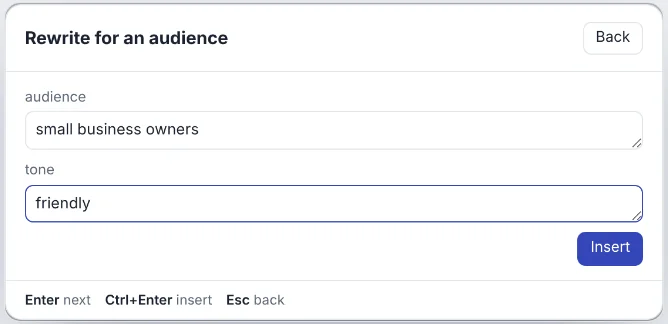
The same library works in all three apps, so a prompt you perfected in Claude is one keystroke away in ChatGPT. Typing // inside a web address like https:// doesn't open the picker. The free plan keeps 10 prompts; Pro keeps unlimited and syncs them across your computers, end-to-end encrypted.
Ten prompts worth having in any library
- Rewrite for audience: "Rewrite for {{audience}} in a {{tone}} tone, under {{length}} words. Keep every fact."
- Code review: "Review this {{language}} code. List bugs first, then risks, then style. Quote the line for each."
- Explain simply: "Explain {{topic}} to someone who knows {{background}}. Use one analogy and one example."
- Summarise a meeting: "Summarise these notes: decisions, owners and dates, open questions. No commentary."
- Critique my draft: "Be a tough editor. What's unclear, what's missing, what should be cut? Don't rewrite it."
- Turn into a checklist: "Turn this into a step-by-step checklist I can follow without the original."
- Compare options: "Compare {{option_a}} and {{option_b}} for {{goal}} in a table, then recommend one and say why."
- Email reply: "Draft a reply to this email. I want to {{intent}}. Keep it under 120 words."
- Debug: "Here's the error and the code. Give the most likely cause first, then how to confirm it."
- Plan: "Make a {{timeframe}} plan to {{goal}}, with weekly milestones and the first task for today."
Keeping the library useful
- Name prompts by job, not by wording: "Code review", not "Please review the following".
- Save the improved version whenever a follow-up message fixed the first answer; that fix belongs in the prompt.
- Prune monthly. If you haven't used a prompt in two months, delete it.
- Keep context out of prompts. Facts about a project belong in project instructions; prompts should work anywhere.
Questions
Does ChatGPT have a built-in prompt library?
Not as a list of reusable prompts. It has custom instructions, project instructions and GPTs, which cover standing preferences and big repeat tasks. For many small prompts with blanks, use a document or a prompt picker.
Can I use the same prompts in ChatGPT, Claude and Gemini?
Yes; good prompts are mostly portable. A cross-app picker such as TidyTalk inserts the same library into all three message boxes.
What are prompt variables or blanks?
Placeholders like {{audience}} in a saved prompt that you fill in each time. They turn a fixed prompt into a reusable template.
Should I use custom instructions or a saved prompt?
Custom instructions for things true in every chat (who you are, how you like answers); saved prompts for specific tasks.
Sources
TidyTalk is an independent Chrome extension and isn't affiliated with OpenAI, Anthropic or Google. Add it to Chrome, free.